
Home Screen quick guide
LookLayer on your phone.
Your styling workspace, one tap away. Add LookLayer to your Home Screen in a few simple steps.
LookLayer currently runs in your browser—not an App Store download. You’ll need an internet connection, and you may be asked to sign in again.
iPhone · Safari
The screenshots below show one Safari layout. Yours may look slightly different.
Open LookLayer in Safari
On your iPhone, open Safari and go to looklayerstudio.com/auth. You can add the shortcut before signing in.
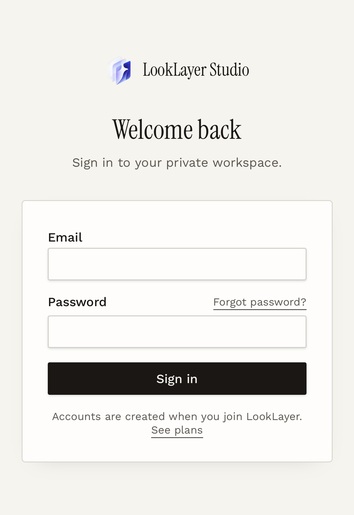
Tap Share
Open Safari’s menu (…), then tap Share . On some iPhones, the Share icon is already beside the address bar.
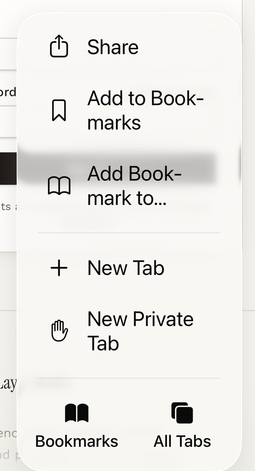
Add to Home Screen
Scroll down the share sheet and tap Add to Home Screen . This is different from adding a bookmark.
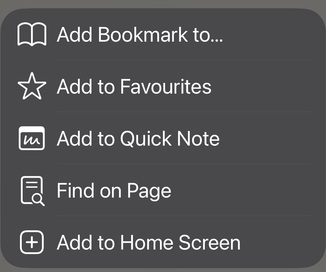
Name it LookLayer
Enter LookLayer as the name. Leave Open as Web App switched on if it appears, then tap Add. The icon will appear on your Home Screen.
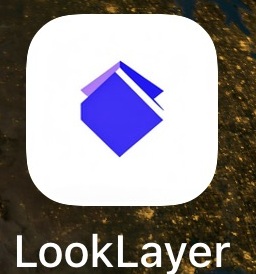
Tap the icon and sign in
Use your existing studio email and password. If you haven’t set your password yet, finish the invitation email first. You don’t need to buy a new plan or create another studio.
A little help, if you need it.
- Can’t see Add to Home Screen?
- Open the link in Safari rather than inside an email or messaging app. Scroll further down the Share menu; if needed, tap Edit Actions and add the Home Screen action.
- Forgot your password?
- Open Sign in and tap Forgot password? Use the email address your studio invited.
- Using Android?
- Open looklayerstudio.com/auth in Chrome. Tap the three-dot menu, then Add to Home screen. Choose Create shortcut or Install app if offered, review the name and confirm. The options depend on your phone; a shortcut may open in Chrome.
More help: Apple’s Home Screen guide · Google’s shortcut guide